
 Español
NokaFut installs from the Chrome Web Store and works on any Chromium-based browser: Google Chrome, Microsoft Edge, Brave, Opera and Vivaldi. It doesn’t work on Firefox or Safari, which use a different extension engine. For mobile, see the Android and iPhone and iPad guides.
How to install it
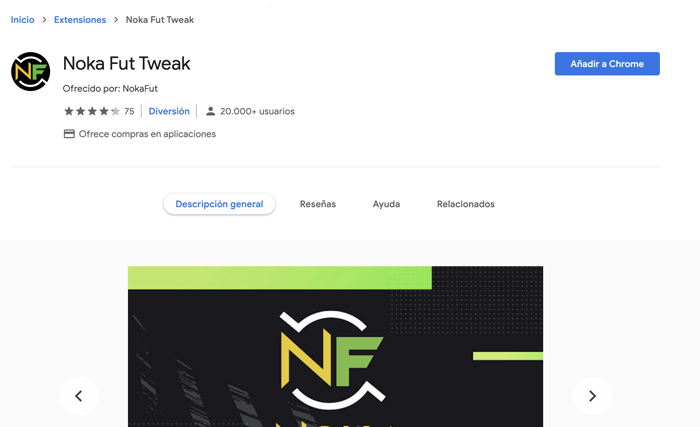
Go to the download page and click «Add». That’s it: open the Web App to start using it.
Where the settings are
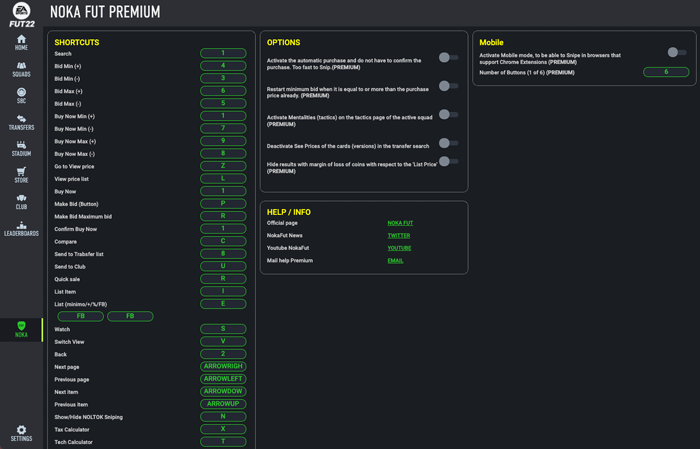
The most common question: NokaFut’s panel isn’t in the extension icon, it’s inside the Web App itself, between settings and bookmarks. From there you set up the shortcuts, the tools and the paid features.
Two rules when setting it up
- Always save after any change. If you don’t, it’s lost.
- Do it with the Web App open: the settings live inside it.
At the start of each season, review your settings and update the extension before logging in: EA changes the Web App with every game. The extension follows the language of your Web App.
Note: NokaFut is a third-party tool. It is not affiliated with, endorsed by or connected to Electronic Arts. Using external tools on the Web App —and especially the automations in the paid tiers— goes against EA’s terms of service and may lead to penalties on your account. The decision to use it is yours.