
 Español
EA’s Web App works on your phone, but it isn’t built for small screens and sniping with your finger is slow. NokaFut works on Android and adds big on-screen buttons for market actions, so you don’t have to fight the interface.
Chrome for Android doesn’t support extensions, so you need a browser that does.
Step 1: install the browser and the extension
- Get the Kiwi browser from Google Play. It is Chromium-based and can install Chrome extensions.
- From Kiwi, install the NokaFut extension.
Step 2: log in and activate
- Open the EA Web App in Kiwi and log in.
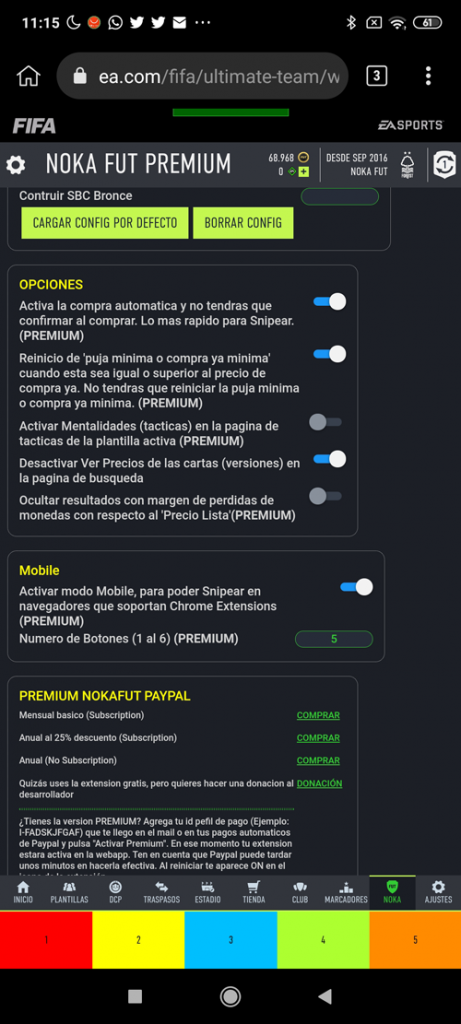
- Open NokaFut and go to the NOKA section (the green icon).
- If you have PREMIUM or SUPERPREMIUM, paste your purchase code (the one PayPal emailed you) and tap «Activate on this account». Plans are in the store.
Step 3: set up the buttons
Choose how many buttons you want on screen, from 1 to 6, depending on what you use. They are big and made for your finger.
If you can’t see the buttons properly
It is almost always zoom or screen orientation. There is a short help video on our Telegram channel. If it still doesn’t work, ask on the NokaFut Telegram channel.
Note: NokaFut is a third-party tool. It is not affiliated with, endorsed by or connected to Electronic Arts. Using external tools on the Web App —and especially the automations in the paid tiers— goes against EA’s terms of service and may lead to penalties on your account. The decision to use it is yours.